태터데스크 관리자

도움말
닫기
적용하기   첫페이지 만들기

태터데스크 메시지

저장하였습니다.
BLOG main image
분류 전체보기 (226)
BOOK (10)
MOVIE (8)
Diary (26)
GAME (17)
Gadget (90)
日常茶飯事 (43)
MacLife (29)
Bleezer 0.9.8.2
Mac OS X Software Directory
Chosun Ilbo ireader digita..
Futurize Korea
김연아 연기 보려다 잠 못잤..
수다쟁이 야야곰사냥꾼(오동..
Apple Macworld 2008 "Are y..
▶세계를 뒤흔든 정보◀▒呂..
어디로 가야 하나 - 불편한..
1004ant의 한일영화 이야기
69,833 Visitors up to today!
Today 11 hit, Yesterday 230 hit
Statistics Graph
daisy rss
tistory 티스토리 가입하기!
'eBook reader'에 해당되는 글 9건
2008/07/12 00:58

이북인사이드 ID [하루는]님께서 만드신 ahk 스크립트를 가지고,
저번 UWSC 처럼, 책제목과 저자 정보를 가져오도록 수정했습니다.
원저작권은 [하루는]님께 있습니다. 제가 손 좀 봤는데, 너무 뭐라 마시길.

[하루는]님께서 언급하셨던 것처럼, UWSC와 칼무리 조합은 속도와 안정성에서 많이 부족하죠.
저 autohotkey를 처음 써봤지만, UWSC보다 강력한 기능이 많아 보이더군요.
캡쳐 영역은 제가 좀 수정했구요.
어쨌든 좀 더 편하게 사용하실 수 있을 겁니다.

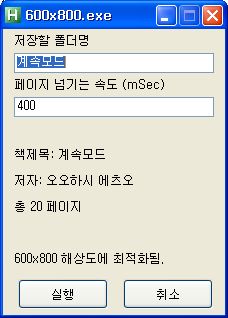
사용자 삽입 이미지


특징.
1. 책제목과 저자 정보를 역시나 자동으로 가져옵니다. 속도 향상.
2. 폴더명을 설정할 수 있도록 했습니다. 경로는 스크립트가 있는 폴더의 하위폴더.
3. 같은 화면 반복 캡쳐 하지 않습니다. 파일 순서가 꼬이지 않습니다.
4. 실행버튼을 누르면 그 페이지부터 캡쳐를 시작합니다. 원하는 페이지로 이동후 캡쳐 가능.
5. ESC키로 캡쳐를 강제종료 할 수 있습니다.
6. PNG로 저장합니다.

설치.
1. http://www.autohotkey.com
   위 사이트에서 autohotkey를 받아 설치합니다.
2. 제가 첨부한 600x800.ahk 파일을 실행합니다.
3. 더 간단한 설치. 그냥 제가 첨부한 exe 실행파일을 실행합니다. 끝.

이올린에 북마크하기(0) 이올린에 추천하기(0)
Trackback Address :: http://taun2.tistory.com/trackback/224 관련글 쓰기
Name
Password
Homepage
Secret
2008/07/01 00:57

//////////////////////////////////////////////////////////
///  UWSC Script for PRS-500/505 ver. 1.1
///  by MANIA ( http://taun2.tistory.com )
///
///  이 UWSC 스크립트는 thinknote님의 블로그를 보고,
///  아이디어를 얻어 만든 자동 스크립트입니다.
///  (http://thinknote.tistory.com/35)
///
///  기본적으로 thinnknote님의 스크립트의 형식을 따왔구요.
///  제가 몇가지 아이디어를 추가한 것입니다.
/// 
///  thinknote님은 칼무리로 캡쳐후, 압축하여, LRFComicsMaker를 이용하는
///  복잡한 작업을 자동으로 가능하게 한 스크립트를 만드셨구요.
/// 
///  저는 칼무리 캡쳐없이, UWSC 자체 이미지캡쳐를 이용했습니다.
///  책정보를 직접 읽어와서 책제목과 저자 입력하는 수고를 덜었습니다.
///  그리고 무엇보다, 책페이지 수도 매번 입력할 필요도 없습니다.
///  이제 이 스크립트를 매번 수정할 필요가 없습니다.
///  제목, 저자, 페이지수 전자동입니다.
///
///  혹시나 마우스 위치 조정 값은 수정해야 할 수 있습니다.
/// 
///  http://taun2.tistory.com
///
//////////////////////////////////////////////////////////

//////////////////////////////////////////////////////////
///
///  변수명을 설정한다.
///
///  path= 경로를 지정합니다. 예로, c:\capture\work\
///  x=가로/y=세로
///    소니리더기는 800/766을, 누트는 800/600을 권장합니다.
///
//////////////////////////////////////////////////////////

startPage=0
path="C:\Work\Capture\"
x=600
y=766
bookTitle=""
author=""
endPage=0


//////////////////////////////////////////////////////////
///  eBook Reader를 활성창으로 변경하고 첫페이지로 이동한다.
//////////////////////////////////////////////////////////

ACW(GETID("eBookReader","#32770"),100,50,740,900,0)
MOUSEORG(GETID("eBookReader","#32770"))
KBD(VK_PROCESSKEY,CLICK,15)
ACW(GETID("eBookReader","#32770"))
KBD(VK_HOME,CLICK,250)

//////////////////////////////////////////////////////////
///  기존 작업 파일을 삭제하는 초기화 작업을 수행한다.
//////////////////////////////////////////////////////////

exec("c:\Work\clear.cmd", false);

//////////////////////////////////////////////////////////
///  차례보기를 열고 제목과 저자를 읽어온다.
//////////////////////////////////////////////////////////

fukidasi("제목과 저자를 읽어옵니다.",380,910)
SLEEP(1)
sckey(GETID("eBookReader","#32770"), VK_CTRL, i)
KBD(VK_TAB,DOWN,40)
KBD(VK_TAB,DOWN,40)
KBD(VK_SPACE,CLICK,250)
SLEEP(0.1)
sckey(GETID("책 정보","#32770"), VK_TAB)
sckey(GETID("책 정보","#32770"), VK_CTRL, c)
SLEEP(0.1)
bookTitle=GETSTR(0)
sckey(GETID("책 정보","#32770"), VK_TAB)
sckey(GETID("책 정보","#32770"), VK_CTRL, c)
SLEEP(0.3)
author=GETSTR(0)
sckey(GETID("책 정보","#32770"),VK_ALT,VK_F4)
SLEEP(0.3)
fukidasi()

//////////////////////////////////////////////////////////
///  차례보기를 닫는다.
//////////////////////////////////////////////////////////

ACW(GETID("eBookReader","#32770"))
sckey(GETID("eBookReader","#32770"), VK_CTRL, i)
KBD(VK_TAB,DOWN,200)
KBD(VK_SPACE,CLICK,250)
SLEEP(0.2)

//////////////////////////////////////////////////////////
///   메뉴바를 연다. 열려있으면 닫고 연다.
///   메뉴바의 페이지수를 클릭.
//////////////////////////////////////////////////////////

sckey(GETID("eBook Reader Slider Control","#32770"), VK_ALT, VK_f4)
sckey(GETID("eBookReader","#32770"), VK_TAB)


ACW(GETID("eBook Reader Slider Control","#32770"),373,875,453,66,0)
MOUSEORG(GETID("eBookReader","#32770"))
KBD(VK_PROCESSKEY,CLICK,15)
BTN(LEFT,CLICK,600,850,500)

//////////////////////////////////////////////////////////
///   메뉴바의 책페이지 수를 읽어온다.
//////////////////////////////////////////////////////////

KBD(VK_HOME,CLICK,20)
SLEEP(1)
KBD(VK_RIGHT,CLICK,20)
sckey(GETID("eBook Reader Slider Control","#32770"), VK_SHIFT,VK_END)
SLEEP(0.3)
sckey(GETID("eBook Reader Slider Control","#32770"), VK_CTRL, c)
SLEEP(0.3)
str=GETSTR(0)
endPage=val(str,0)

fukidasi("책 제목 : "+bookTitle+"/ 책 저자 : "+author+"/ 전체페이지 : "+endPage+"  페이지",380,910)
SLEEP(2)
fukidasi()

//////////////////////////////////////////////////////////
///  메뉴바를 닫는다.
//////////////////////////////////////////////////////////

sckey(GETID("eBook Reader Slider Control","#32770"), VK_ALT, VK_f4)

//////////////////////////////////////////////////////////
///  eBook Reader를 활성창으로 변경하고 첫페이지로 이동한다.
//////////////////////////////////////////////////////////

ACW(GETID("eBookReader","#32770"))
MOUSEORG(GETID("eBookReader","#32770"))
KBD(VK_PROCESSKEY,CLICK,15)
ACW(GETID("eBookReader","#32770"))
KBD(VK_HOME,CLICK,250)

//////////////////////////////////////////////////////////
///  캡처를 시작한다
//////////////////////////////////////////////////////////

ACW(GETID("eBookReader","#32770"))
MOUSEORG(GETID("eBookReader","#32770"))
fukidasi("캡처를 시작합니다.",380,910)  
SLEEP(1)
fukidasi()


    SAVEIMG(path+GETTIME(0, G_TIME_ZZ2)+".jpg", GETID("eBookReader","#32770"),70,50,x,y,FALSE,85)

Repeat
    startPage=startPage+1
    KBD(VK_RIGHT,CLICK,100)
    SLEEP(0.6)
    fukidasi(startPage + " /" + endPage + " 페이지 캡처 중...",380,910)
    SAVEIMG(path+GETTIME(0, G_TIME_ZZ2)+".jpg", GETID("eBookReader","#32770"),70,50,x,y,FALSE,85)
until startPage=endPage


//////////////////////////////////////////////////////////
///  LRFComicsMaker를 실행하여 파일을 생성한다.
//////////////////////////////////////////////////////////

fukidasi("LRF 파일을 만듭니다.",380,910)
exec("C:\Work\LRFComicsMaker\LRFComicsMaker.exe")

ACW(GETID("SONY PRS-500 만화책(LRF) 만들기","#32770"))
MOUSEORG(GETID("SONY PRS-500 만화책(LRF) 만들기","#32770"))
ACW(GETID("SONY PRS-500 만화책(LRF) 만들기","#32770"))

KBD(VK_A,CLICK,50)
ACW(GETID("책 정보를 입력하세요","#32770"),510,430,380,160,0)
sendstr(GETID("책 정보를 입력하세요","#32770"),bookTitle)
KBD(VK_TAB,CLICK,100)
SLEEP(0.5)
sendstr(GETID("책 정보를 입력하세요","#32770"),author)
KBD(VK_RETURN,CLICK,100)

KBD(VK_J,CLICK,50)
ACW(GETID("열기","#32770"),614,351,654,388,0)
sendstr(GETID("열기","#32770"),path)
KBD(VK_RETURN,CLICK,100)
sckey(GETID("열기","#32770"),VK_SHIFT,VK_TAB)
SLEEP(0.1)
sckey(GETID("열기","#32770"),VK_CTRL,VK_A)
SLEEP(0.5)
KBD(VK_RETURN,CLICK,50)
SLEEP(2)

ClkItem(GETID("SONY PRS-500 만화책(LRF) 만들기","#32770"),"만화책(LRF) 만들기",CLK_BTN)


이올린에 북마크하기(0) 이올린에 추천하기(0)
Trackback Address :: http://taun2.tistory.com/trackback/223 관련글 쓰기
BlogIcon thinknote | 2008/07/01 06:29 | PERMALINK | EDIT/DEL | REPLY
훌륭한데요^^ 혹시 UWSC 스크립트를 작성하시는데 참고하신 사이트가 있으신가요? 일본어 사이트만 봐서 감으로 하다 보니 좋은 기능이 있어서 사용을 못한 것 같아서요..
BlogIcon 매니아 | 2008/07/01 10:21 | PERMALINK | EDIT/DEL
아뇨. 그냥 도움말파일을 일본어번역기 돌려가면서 했어요.
그런데, 이 스크립트에도 특별한 명령어는 없어요. 복잡해보이긴 하지만.
이북인사이드 어느분이 SAVEIMG 사용해봐라 한것과,
sckey 정도? 아, val 명령어도 있네요.
Name
Password
Homepage
Secret
2008/06/25 22:19
이미지를 클릭하시면 원본이미지를 보실 수 있습니다.


오랜만에 글을 씁니다.

펌웨어 버전 1.20.0625가 나왔습니다. 드디어 폴더 지원 합니다.
그림보기에서 책(?) 읽기가 무지 편해졌죠.
앞으로 그림보기를 책읽기보다 더많이 사용하게 될 듯 합니다.


명조체, 굴림체 밑에 반전된 명조, 굴림이 보이죠?
아래 두개가 화면깜빡임 자동 작동입니다.
저는 깜빡이는게 좋더군요.


이게 제일 만족스러운 점입니다. 제일 작은 글꼴에서 가독성이 떨어지는 점이 고쳐졌습니다.
볼드체는 아니지만, 그전 버젼에서의 글씨보다는 굵어졌습니다.
위의 명조체도 좋지만, 굴림체(소) 이게 아주 제맘에 듭니다.
18사이즈의 폰트. 아마 그 정도?


보시면 <조선일보> 아이콘이 보이시죠? 음..
아마도 다른 아이콘을 기대해도 좋을 듯 싶습니다. 뭐, 중앙이나 동아 정도??
1개월 10,000원이랍니다. 딴나라 신문이라 비싼가 봅니다.


그밖에도 책본문에서 좌우 단어정렬 기능이 있습니다.
이것도 정말 좋습니다.
설명서도 설정에 가면 읽어볼 수 있게 했네요. 이것도 좋네요.
결론적으로 많이 좋아졌습니다.
완성도 높은 펌웨어입니다. 메뉴 버튼의 기능(책갈피 등등..)만 되돌려준다면 100%겠네요.

특히 한글에 정말 최적화(?)된 펌웨어란 생각이 듭니다.
PRS-505와 비교하자면, 이런점은 소니가 따라갈 수 없죠.
소니에서 LRF, Text를 읽을때, 문단정렬 안되고, 글자 몇개 사라지는 일이 사실 되게 신경쓰였거든요.

ps. 제 PRS-505가 수리를 마치고 미국에서 출발했다고 하네요. 새제품으로 교환받은것 같아요. 자세한건 아직..

이올린에 북마크하기(0) 이올린에 추천하기(0)
Trackback Address :: http://taun2.tistory.com/trackback/222 관련글 쓰기
Name
Password
Homepage
Secret
2008/01/26 23:31
사용자 삽입 이미지

네덜란드의 폴리머 비전이 발표한 이북리더기 또는 휴대폰, 어쨌든 다양한 기능의 포터블 기기인 레디우스이다.
영어 이름은 Readius, Read + ius.
간단히 설명하면, E-잉크를 사용, 플렉서블(휜다) 5인치 디스플레이에 E-BOOK, E-MAIL, RSS등을 볼 수 있고, 4G의 내장 메모리, 그리고 내장 스피커를 통해 음악감상이 가능하다.
무엇보다 이건 휴대폰이다. 그리고 컨셉이 아니고 구동 동영상도 있고, 올해 출시예정이라고 한다.

내가 관심이 가는 것은 위의 사진. 디스플레이 되고 있는 내용이다.

e-Book
e-Ink, e-Paper를 사용했으니, 이북리더 기능이 있는게 당연하다.

RSS Feed.
Kindle이 RSS 피드 기능을 처음 선보였지만, 특정 RSS만 구독이 가능했었다. 그것도 유료였고.
하지만, 이 레디우스는 좀 다르지 않을까 기대해본다.
무료로 개인이 원하는 대로 Feed를 설정할 수 있고, 자유롭게 구독할수 있다면, 정말 금상첨화다.
이게 결국 신문 구독도 가능하게 할 것이다. 멋지지 않은가? 아침마다 나의 레디우스는 신문을 무선 인터넷에 접속해서 저장해 둔다. 아니면 휴대폰의 데이터 서비스에서라도 신문을 구독한다.
하루 일과를 RSS 읽는 것으로 시작하는 나에게는 이거 정말 필요하다.

PODCASTS
이건 정말 맘에 든다. 개인적으로 팟캐스트를 즐겨 듣기때문에 휴대기기로 들을 수 있기를 기대했었다.
물론 사랑스런 아이팟 터치가 팟캐스트를 들을 수 있게 해주었다. (터치야 사랑해~)
이 레디우스는 실시간 팟캐스트를 무선 인터넷이나 데이터서비스를 이용해서 받을 수 있을 것이다.
(여기서 쓰러지면 된다.)

Email
이건 뭐 넘어가자.

PIM
일정관리, 주소록, 할일, 그다음 Travel Schedule (요건 뭔지 모르겠다.)

결론~~!!!!
이 정도 휴대폰이면, 가지고 놀기에 딱 좋을 것 같다.

참고로 레디우스는...
touch sensitive LED로 조작하는 유저인터페이스
저전력소모로 배터리는 약 10일정도 사용가능
extensive connectivity로 언제 어디서나 업데이트를 제공
Grey levels: 16
화면갱신속도: 0.5 - 1 s
지원: RSS feeds, PDF’s, e-books, e-mail, 그외 text 파일들
오디오: 내장스피커와 헤드폰 (리모콘 포함)
연결: USB와 wireless broadband
이올린에 북마크하기(0) 이올린에 추천하기(0)
Trackback Address :: http://taun2.tistory.com/trackback/176 관련글 쓰기
Name
Password
Homepage
Secret
2008/01/21 11:54
Ebook%20iRiver%20GI.jpg

CES 2008에서 개인적으로 BOOK2가 나오길 바랬건만, BOOK2 소식은 어디에서도 없었다.
CES 2007, 그리고 SEK 2007 에서는 BOOK2 시연까지 했었지만은 CES 2008에서는 뭐 깜깜 무소식이다.
위 사진에서의 멋진 이북리더기도 그냥 컨셉일뿐이다.
컨셉만 보자면, 1. 칼라 디스플레이, 2. 손으로 쓴 메모가 보인다.
이런 컨셉이 현제 시제품으로 나올리야 없겠지만, 몇년후에는 볼 수 있을지도 모르겠다.
물론 기대가 된다.
나오면 사줄 생각도 있다. 컬러 이북이 그때 얼마정도 했더라?
허나, 북2는 어디갔냔 말이다. 개발 취소냐?
듀얼 디스플레이에, 터치를 인식하여 손으로 책을 넘기듯한 멋지구리한 시연을 보여주었던, 그 예쁜 북2는 어쩌고 저런 허황된 컨셉만 웹사이트에 올리냔 말이다. 아이리버야!

사용자 삽입 이미지
사용자 삽입 이미지
사용자 삽입 이미지
iriver Book2
전면 E-Book 뷰어, 두개의 E-Ink 디스플레이
고급가죽외면, 충분한(?) E-Book 리더 내장
터치스크린, 버튼 컨트롤 시스템
AAA 배터리 2개로 6개월 사용
Mini SD카드 슬롯
PIMS 기능

관련기사 : 전자책 전용 단말기시장, 아직도 '동면 중'
 - 이 기사에서 Book 2는 비싸서 시장성이 없을거라고 생각해서 출시를 연기한다는... 뭐 이런!!
이올린에 북마크하기(0) 이올린에 추천하기(0)
Trackback Address :: http://taun2.tistory.com/trackback/169 관련글 쓰기
Name
Password
Homepage
Secret
2007/11/20 11:00

Bezos_Kindle_2.jpg

10:03 - There's a dictionary resident on every Kindle, the 8-lb. Oxford American Dictionary on the 10-oz. Kindle. "With Kindle it's so friction-free to look up a word, I find my deduction of what that word might mean hasn't been that accurate." Wikipedia is the "best encyclopedia in the world;" you can access Wikipedia from the device.
- 옥스포드등의 전자사전 내장.

10:00 - Personal documents - Every Kindle has an e-mail address. Attach docs and e-mail them to your device. It's that simple.
- 각 Kindle 디바이스는 각각 e메일 주소를 가지고 있다.

9:57 - 90,000 books - 101 of 112 NYT bestsellers - 9.99 - if you want to do things taht physical books can't do, why not deliver newspapers. They are delivered while you sleep. WSJ, NYT, Washington Post, and local newspapers too. Local newspapers on Kindle become national newspapers. Time, Fortune, Atlantic Monthly, Slate. And over 300 of the most popular blogs. This is not RSS - it's pushed to you. Subscribe to the ones you want.
- 당신이 잠들어 있는 동안 신문을 배달해 줄 것이다. 즉 구독이 가능.

5 - "EV-DO, fastest wireless technology, it's broadband. Highly deployed. Use it while you move around. Everybody knows when you use wireless cell networks, there's gotta be a data plan, multiyear contract, monthly bill -- we didn't like that either. We built Amazon Whispernet on top of Sprint's EV-DO network. No data plan, no multiyear contract, no monthly bill -- we pay for all of that behind the scenes so you can just read."
- EV-DO의 빠른 속도. Wi-FI가 아니다.

9:52 - "With a PC - you are loading software, shopping from your PC - once you bought and downloaded a book, you use USB cable to sync to device. We didn't think that was a very good solution. There would be no PC, no software to install. Instead of shopping from your PC, you shop from your device. Store is on your device."
- PC로 쇼핑한 책을 구입해서 리더기로 옮길 수도 있지만, PC없이 기계안에서도 구입이 가능.


paper-like screen

Paper-like Screen

Utilizing a new high-resolution display technology called electronic paper, Kindle provides a crisp black-and-white screen that resembles the appearance and readability of printed paper. The screen works using ink, just like books and newspapers, but displays the ink particles electronically. It reflects light like ordinary paper and uses no backlighting, eliminating the glare associated with other electronic displays. As a result, Kindle can be read as easily in bright sunlight as in your living room.The screen never gets hot so you can comfortably read as long as you like.

See what others are saying about the Kindle screen:

James Patterson, author of You've Been Warned, "The screen is fabulous. You would expect that, with a screen, there would be a glare, it would be hard to read but it's not. There’s no glare. It's not backlit, which is kind of magical. I think people are going to be very, very surprised and delighted. This is a lot easier to read than a lot of books are these days."

Michael Lewis, author of Moneyball, "I'm telling you, after five minutes I've ceased to think I'm looking at a screen. It's not like reading a computer screen. It's more like reading a piece of paper. I think it's actually clearer, easier on the eye than the printed word."

Neil Gaiman, author of Stardust, "It's like paper and it’s very interesting. It’s very, very crisp. Very functional. Very readable."


Wireless Access

Wireless Access with Whispernet

Whispernet utilizes Amazon's optimized technology plus Sprint's national high-speed (EVDO) data network to enable you to wirelessly search, discover, download, and read content on the go.

Unlike WiFi, you don't have to find a hotspot. Amazon pays for Kindle's wireless connectivity so you will never see a monthly wireless bill for shopping the Kindle Store. There is no wireless setup—you are ready to shop, purchase and read right out of the box.


Lightweight

Carry Your Library in 10.3 Ounces

At 10.3 ounces, Kindle is lighter and thinner than typical paperbacks, and fits easily in one hand. Its built-in memory stores hundreds of titles. An optional SD memory card lets you hold even more. For instance, a 256MB SD memory card holds over 300 titles. From Melville to Morrison, your favorite authors can always be with you.

In addition, a copy of every book you purchase is backed up online in Your Media Library in case you ever need to download it again. This allows you to make room for new titles on your device, knowing that Amazon is storing your personal library, which can always be re-downloaded wirelessly. Think of it as a bookshelf in your attic—even though you don't see it, you know your books are there.


Ergonomic

Ergonomic Design

We wanted Kindle to be as easy to hold and use as a book, so we designed it with long-form reading in mind. When reading for long periods of time, people naturally shift positions often. Kindle's full-length, vertical page-turning buttons are located on either side, allowing you to read and turn pages comfortably from any position. Navigation on both sides means both "lefties" and "righties" can easily use Kindle with one hand. And at only 10.3 ounces, Kindle is lighter and thinner than a typical paperback.

Shop Anywhere

Shop the Kindle Store Right from Your Device

You can shop the Kindle Store wirelessly right from your device, allowing you to click, buy, and start reading your purchases within a minute. The Kindle Store offers the same great Amazon.com customer experience you're used to, including customer reviews, personalized recommendations, and low prices. Simply search for the title or author you're interested in reading, or browse the store to discover titles and download your reading choices. We auto-deliver your selections wirelessly, so the next time you hear about a great book, just click, buy, and read.

Search

Search

Kindle makes it easy to search across your library. To use the Search feature, simply type in a word or phrase you’re looking for, and Kindle will find every instance across your Kindle library. Looking for an article you read a couple of days ago about hybrid cars but can’t remember where? Simply type in hybrid and Kindle will search your library for each reference, making it easy to jump directly to what you’re looking for. You can extend your search to the Kindle Store to find related titles you may be interested in. Explore even further by searching Wikipedia.

Keyboard

Keyboard

Kindle's QWERTY keyboard puts the Kindle Store at your fingertips. Simply type in a title, author, or keyword to find the book, newspaper, or magazine you are looking for. From there, click to buy, and begin reading your selection in under a minute.

The keyboard also enables you to do a full text search across your entire library or within a specific title. To find the article you read last week on globalization, simply type in globalization to locate each relevant reference. You can then jump to Wikipedia to learn more about it. The keyboard also means you can annotate text and utilize Kindle’s built-in dictionary without interrupting your reading.


Bookmarks

Bookmarks and Annotation

By using the keyboard, you can add annotations to text, just like you might write in the margins of a book. And because it is digital, you can edit, delete, and export your notes, highlight and clip key passages, and bookmark pages for future use. You'll never need to bookmark your last place in the book, because Kindle remembers for you and always opens to the last page you read.

Lookup

Built-in Dictionary

Never get caught without a dictionary. Kindle includes The New Oxford American Dictionary with over 250,000 entries and definitions, so you can seamlessly look up the meanings of words without interrupting your reading. Never fear a sesquipedalian word again—simply look it up as you go.

Wikipedia

Wireless Access to Wikipedia

Kindle also includes free built-in access to the world's most exhaustive and up-to-date encyclopedia—Wikipedia.org. With Kindle in hand, looking up people, places, events and more has never been easier. It gives whole new meaning to the phrase walking encyclopedia.

Text Sizes

Adjustable Text Size

Because one size doesn’t fit all, you can increase the text size of your favorite book or periodical with the push of a button. If your eyes tire, simply increase the font size and continue reading comfortably. Kindle has six adjustable font sizes to suit your reading preference.

Battery Life

Long Battery Life

Leave wireless on and recharge approximately every other day. Turn wireless off and read for a week or more before recharging. Battery life will vary based on wireless usage, such as shopping the Kindle Store and downloading content. In low coverage areas or in 1xRTT only coverage, wireless usage will consume battery power more quickly. Kindle fully recharges in two hours.

Accessories

What's included in the box?

Kindle Electronic Reader
Book cover
Power adapter
USB 2.0 cable

블로거의 한마디 더..


이올린에 북마크하기(0) 이올린에 추천하기(0)
Trackback Address :: http://taun2.tistory.com/trackback/100 관련글 쓰기
Name
Password
Homepage
Secret
2007/11/17 00:30
amazon_kindle2.jpeg

The Kindle is equipped with a Wi-Fi connection that taps into an Amazon e-book store, which users can access to purchase new electronic books--and Amazon has reportedly signed onto a deal with Sprint for EVDO access. Additionally, the device comes with a headphone jack for audiobooks, as well as an e-mail address.

얼마전에 잠깐 소개해드린 아마존 Kindle 이북리더기입니다.
다음주에 판매에 들어간다고 하구요.
특징이 기기에서 EVDO으로 Amazon e-book store에 접속해서 이북을 구입할 수 있다는 것인데요, 매일 뉴스를 다운